Syntax Highlighting with Prism.js for XML, PUG, YAML, and C#
Syntax highlighting is a crucial aspect of code readability and presentation. In this guide, we will explore how to implement syntax highlighting for XML, PUG, YAML, and C# using the powerful Prism.js library. Additionally, we will delve into automating the bundling process with render-scripts.js to streamline your workflow.
Content Strategy Series — 8 articles
- Mastering Blog Management Tools
- Embracing Azure Static Web Apps for Static Site Hosting
- Moving to MarkHazleton.com
- Automate GitHub Profile with Latest Blog Posts
- Syntax Highlighting with Prism.js for XML, PUG, YAML, and C#
- Canonical URL Troubleshooting for Static Web Apps
- Developing MarkHazleton.com: Tools and Approach
- Getting Started with PUG: History and Future
Filed under How software delivery really works
Topic cluster
Case Studies and Project EvidenceProject writeups, Spark ecosystem applications, content workflows, and lessons from shipped systems.
Using Prism.js for XML, PUG, YAML, C#, and Python
When building a website or documentation portal that involves a lot of code snippets, syntax highlighting becomes essential to enhance readability and user experience. Prism.js is a lightweight and customizable library for syntax highlighting.
In this guide, we will walk through setting up Prism.js for XML, PUG, YAML, C#, and Python and discuss automating this process using a custom build tool, render-scripts.js.
Introduction
When building a website or documentation portal that involves a lot of code snippets, syntax highlighting becomes essential to enhance readability and user experience. Prism.js is a lightweight and customizable library for syntax highlighting that supports multiple programming languages including XML, PUG, YAML, C#, and Python.
This comprehensive guide will walk you through the complete process of implementing Prism.js in your project, from basic setup to advanced customizations and automation using build tools.
Adding Prism.js to Your Project
Step 1: Setting Up Prism.js dd.mb-3 First, include Prism.js in your project. You can use the CDN or download it locally for better performance and offline capability. Below is the CDN setup for the Coy theme. Performance Tip: For production websites, consider hosting PrismJS files locally instead of using CDNs to reduce external dependencies and improve loading performance. Show/Hide CDN Setup ``
Step 2: Adding Support for Specific Languages
To highlight specific languages like XML, PUG, YAML, C#, and Python add their corresponding language components.
<script src="https://cdnjs.cloudflare.com/ajax/libs/prism/1.27.0/components/prism-xml.min.js"></script>
<script src="https://cdnjs.cloudflare.com/ajax/libs/prism/1.27.0/components/prism-pug.min.js"></script>
<script src="https://cdnjs.cloudflare.com/ajax/libs/prism/1.27.0/components/prism-yaml.min.js"></script>
<script src="https://cdnjs.cloudflare.com/ajax/libs/prism/1.27.0/components/prism-csharp.min.js"></script>
<script src="https://cdnjs.cloudflare.com/ajax/libs/prism/1.27.0/components/prism-python.min.js"></script>
Step 3: Creating Code Blocks for Each Language
Wrap your code in <pre> and <code> tags with the appropriate language class for Prism.js to highlight them.
XML Example
<rss version="2.0">
  <channel>
    <title>Latest Blog Posts</title>
    <link>https://markhazleton.com</link>
    <description>Recent blog posts from Mark Hazleton</description>
  </channel>
</rss>
PUG Example
html
  head
    title Prism.js Highlight Example
  body
    h1 This is a PUG template
    p Use Prism.js for highlighting PUG syntax.
YAML Example
name: Update README with Latest Blog Posts
on:
  schedule:
    - cron: '0 0 * * *'
jobs:
  update-readme:
    runs-on: ubuntu-latest
C# Example
using System;
public class HelloWorld {
  public static void Main(string[] args) {
    Console.WriteLine("Hello, World!");
  }
}
Step 4: Automating with render-scripts.js
In my build process, the render-scripts.js script bundles Prism.js, Bootstrap, and custom JavaScript files into a single, minified file for deployment. Here's the key part of the script that handles the combination of these scripts.
// Path to Bootstrap JS in node_modules (adjust according to your Bootstrap version)
const bootstrapJSPath = upath.resolve(upath.dirname(__filename), '../node_modules/bootstrap/dist/js/bootstrap.bundle.min.js');

// Path to PrismJS and the YAML language component in node_modules
const prismJSPath = upath.resolve(upath.dirname(__filename), '../node_modules/prismjs/prism.js');
const prismYAMLPath = upath.resolve(upath.dirname(__filename), '../node_modules/prismjs/components/prism-yaml.min.js');
const prismXMLPath = upath.resolve(upath.dirname(__filename), '../node_modules/prismjs/components/prism-xml-doc.min.js');
const prismPUGPath = upath.resolve(upath.dirname(__filename), '../node_modules/prismjs/components/prism-pug.min.js');
const prismCSHARPPath = upath.resolve(upath.dirname(__filename), '../node_modules/prismjs/components/prism-csharp.min.js');
const prismPYTHONPath = upath.resolve(upath.dirname(__filename), '../node_modules/prismjs/components/prism-python.min.js');

// Paths for scripts.js and its destination
const sourcePathScriptsJS = upath.resolve(upath.dirname(__filename), '../src/js/scripts.js');
const destPathScriptsJS = upath.resolve(upath.dirname(__filename), '../docs/js/scripts.js');

// Read the Bootstrap JS, PrismJS, Prism YAML, and your scripts.js content
const [bootstrapJS, prismJS, prismYAML, prismXML, prismPUG, prismCSHARP,prismPYTHON, scriptsJS] = await Promise.all([
  fs.readFile(bootstrapJSPath, 'utf8'),
  fs.readFile(prismJSPath, 'utf8'),
  fs.readFile(prismYAMLPath, 'utf8'),
  fs.readFile(prismXMLPath, 'utf8'),
  fs.readFile(prismPUGPath, 'utf8'),
  fs.readFile(prismCSHARPPath, 'utf8'),
  fs.readFile(prismPYTHONPath, 'utf8'),
  fs.readFile(sourcePathScriptsJS, 'utf8')
]);

// Combine Bootstrap JS, PrismJS, Prism YAML, and your scripts.js
const combinedScripts = bootstrapJS + '\n' + prismJS + '\n' + prismYAML + '\n' + prismXML + '\n' + prismPUG + '\n' + prismCSHARP + '\n' + prismPYTHON + '\n'+ scriptsJS;
Step 5: Verifying and Customizing Highlighting
You can verify that Prism.js is working by viewing the page in your browser. Optional customizations can be applied using CSS to tweak the appearance. For example:
.token.keyword {
  color: #569cd6;
}
Other Considerations
Optimizing Performance with Prism.js
To optimize performance, consider using Prism.js’s autoloader to load only the necessary languages at runtime. Add the autoloader script like this:
<script src="https://cdnjs.cloudflare.com/ajax/libs/prism/1.27.0/plugins/autoloader/prism-autoloader.min.js"></script>Prism.js's autoload feature dynamically loads only the language components needed for a specific page, optimizing performance by reducing initial file size and improving load times. Instead of including all supported languages at once, the autoload plugin detects the language specified in the class attribute of a <code> block (e.g., language-js or language-csharp) and fetches the corresponding language component asynchronously from the server.
This is particularly useful for websites that support multiple languages but may not use all of them on every page. To enable this feature, you include the autoloader plugin script in your project, and Prism.js will handle the rest by loading languages as they are required, ensuring your site loads quickly while still supporting syntax highlighting for all necessary languages.
Theming with Prism.js
Theming with Prism.js allows bloggers to align the appearance of their code samples with the overall design and branding of their site. Customizing how code looks enhances both the visual appeal and readability, which can improve user experience and engagement. Prism.js provides a variety of out-of-the-box themes, such as Coy, Okaidia, and Solarized Light, that make it easy to integrate beautiful syntax highlighting with minimal effort.
However, bloggers often want more control over the colors and styles used for keywords, strings, comments, and other code elements. Prism.js supports a "roll your own" approach, enabling full customization of themes through CSS overrides. This flexibility allows bloggers to tailor code snippets to match their site’s style, making the presentation of technical content both consistent and aesthetically pleasing.
- Coy
- Okaidia
- Solarized Light
- Twilight
- Funky
- Dark
Each theme provides a different look and feel, giving flexibility in matching your site’s design. To switch between themes, simply replace the theme’s CSS file in your HTML with the new one. For example:
<link href="https://cdnjs.cloudflare.com/ajax/libs/prism/1.27.0/themes/prism-twilight.min.css" rel="stylesheet" />If the available themes don’t match your style, you can create a custom theme by overriding Prism.js’s default CSS. Here’s a simple guide to writing your own theme:
/* Customizing the color for keywords */
.token.keyword {
  color: #ff79c6;
}
/* Changing the background color of code blocks */
pre {
  background-color: #282a36;
  color: #f8f8f2;
}
/* Customize string tokens */
.token.string {
  color: #50fa7b;
}
You can override any token type supported by Prism.js. Common token types include .token.keyword, .token.string, .token.comment, and .token.function. Once your CSS is ready, include it in your project to apply the new styles:
<link rel="stylesheet" href="/path/to/your/custom-theme.css" />Writing your own theme allows you to fully control the appearance of code snippets and seamlessly integrate them into your site's design.
Embedding Code in Markdown Blogs
If your blog uses Markdown, you can still use Prism.js for syntax highlighting by specifying the language after the opening backticks. Here's how to add different language code blocks in Markdown:
```xml
<rss version="2.0">
  <channel>
    <title>Latest Blog Posts</title>
    <link>https://markhazleton.com</link>
</channel>html
head
title Prism.js Highlight Example
body
h1 This is a PUG template
After generating your Markdown content, Prism.js will automatically highlight the code samples according to the specified language when rendered on your site.

### Adding Copy-to-Clipboard Functionality

Prism.js offers a plugin to add a "copy to clipboard" button for each code block. Simply add the following script to enable this functionality:

```html
<script src="https://cdnjs.cloudflare.com/ajax/libs/prism/1.27.0/plugins/copy-to-clipboard/prism-copy-to-clipboard.min.js"></script>
Once included, the "copy" button will automatically appear in each code block, making it easy for your readers to copy code snippets with one click.
Adding Line Numbers to Code Blocks
If you want to display line numbers alongside your code, Prism.js has a line-number plugin. Include the plugin with the following CDN:
<script src="https://cdnjs.cloudflare.com/ajax/libs/prism/1.27.0/plugins/line-numbers/prism-line-numbers.min.js"></script>
<link href="https://cdnjs.cloudflare.com/ajax/libs/prism/1.27.0/plugins/line-numbers/prism-line-numbers.min.css" rel="stylesheet" />
To apply line numbers, add the line-numbers class to your pre tags.
SEO Considerations for Code Samples
Code samples can impact SEO if not optimized properly. Here are a few tips:
- Use
<pre>tags appropriately to indicate that it's source code. - Ensure code snippets are properly formatted and not too long to avoid readability issues.
- Add descriptive titles and meta tags to help search engines understand your content.
Collapsible Code Blocks for Large Samples
For long code snippets, you can make the block collapsible to keep your blog post more readable. Here’s an example using Bootstrap's collapse component:
<button class="btn btn-primary" type="button" data-bs-toggle="collapse" data-bs-target="#codeBlock" aria-expanded="false" aria-controls="codeBlock">
  Show/Hide Code
</button>
<div class="collapse" id="codeBlock">
</div>
Making Code Blocks Mobile Responsive
To ensure code snippets are readable on mobile devices, you can add responsive styles. Prism.js by default handles code wrapping, but you can ensure better readability by adding custom CSS:
pre {
  white-space: pre-wrap;
  word-wrap: break-word;
}
Embedding Code from GitHub Gists
Another option for sharing code snippets is embedding them directly from GitHub Gists. To do this, simply paste the script URL from the Gist into your HTML:
<script src="https://gist.github.com/username/gist-id.js"></script>This will automatically render the Gist’s code in your blog post, allowing readers to view and copy it.
Glossary of Key Terms
Prism.js
Prism.js is a lightweight, extensible syntax highlighter used for displaying code snippets in web pages. It supports a wide range of programming languages and offers plugins for features like line numbers and copy-to-clipboard.
Prism.js is popular among bloggers and documentation sites for its ease of use, performance, and flexibility. Learn more on Wikipedia
Syntax Highlighting
Syntax highlighting is the practice of displaying source code in different colors and fonts according to the category of terms. This improves code readability and helps developers quickly identify elements like keywords, variables, and comments.
Modern editors and web tools use syntax highlighting to enhance the user experience. See more on Wikipedia
CDN (Content Delivery Network)
A CDN is a network of servers distributed geographically to deliver web content quickly and efficiently. Using a CDN for libraries like Prism.js ensures fast load times and high availability for users worldwide.
CDNs are a best practice for modern web development, improving both performance and reliability. See more on Wikipedia
Accessibility
Accessibility in web development means designing websites and tools so that people with disabilities can use them. For code samples, this includes using semantic HTML, descriptive alt text, and ensuring keyboard navigation.
Accessible code samples help all users, including those using screen readers or other assistive technologies. Learn more on Wikipedia
SEO (Search Engine Optimization)
SEO is the process of optimizing web content to improve its visibility in search engine results. For technical blogs, this includes using descriptive meta tags, structured headings, and accessible code samples.
Good SEO practices help your articles reach a wider audience and improve discoverability. See more on Wikipedia
In conclusion, Prism.js is a powerful tool for syntax highlighting, and by automating its integration with a custom script like render-scripts.js, you can streamline the process and ensure all necessary languages are supported across your site. Following best practices for SEO, accessibility, and Bootstrap 5 styling will maximize your blog’s reach and user experience.
Explore More
- Mastering Web Project Mechanics -- Explore essential strategies for web project success
- Mastering Blog Management Tools -- Creating a Custom CMS for Your Blog
- Embracing Azure Static Web Apps for Static Site Hosting -- Discover the Power of Azure for Modern Web Hosting
- Migrating to MarkHazleton.com: A Comprehensive Guide -- Streamline Your Blog Migration with Azure and Cloudflare
- Automate GitHub Profile with Latest Blog Posts -- Enhance Your GitHub Profile with Automation
Related project evidence
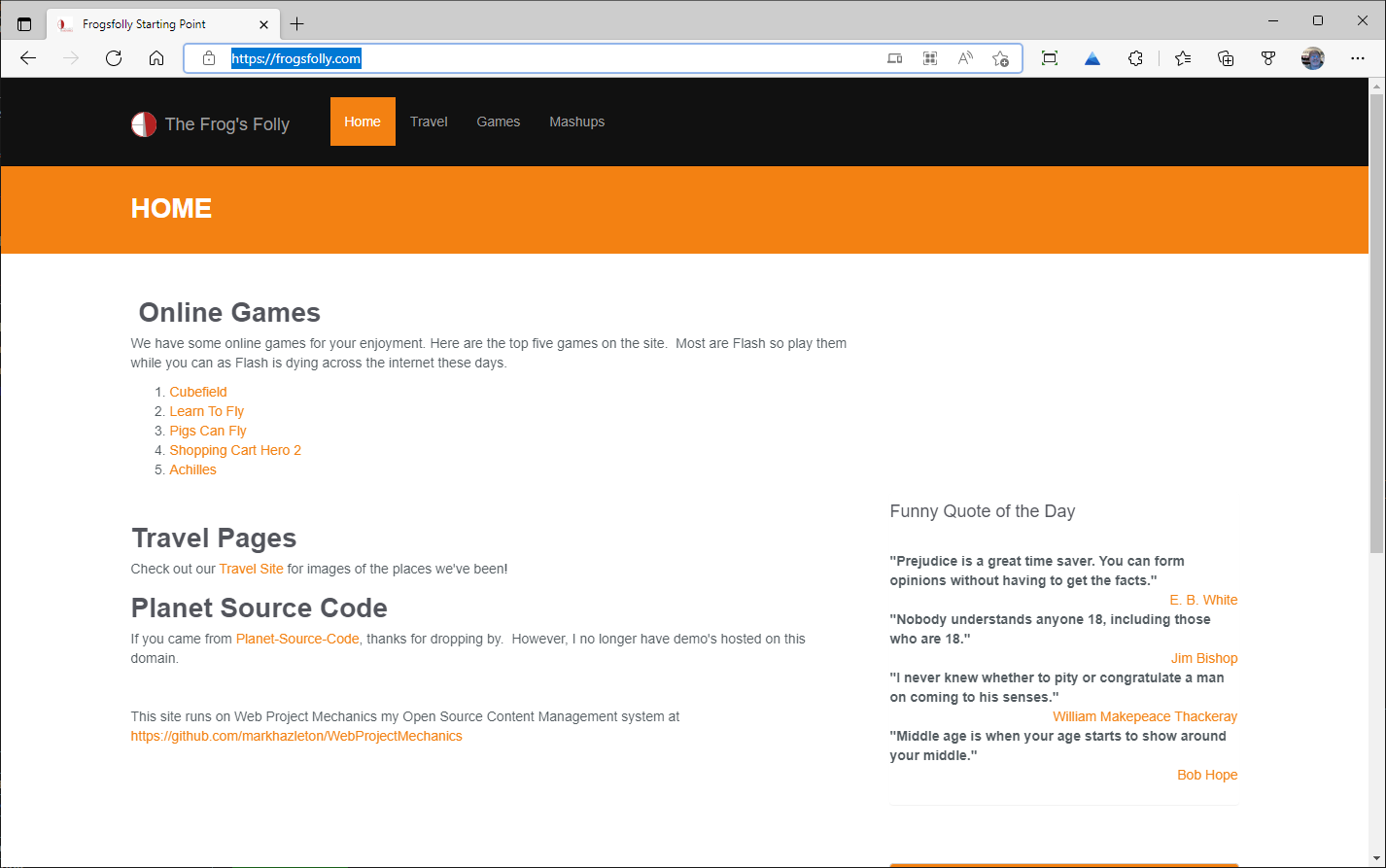
Frogsfolly.com Main
Frogsfolly.com is the original website I created in 1999 when learning web technologies.
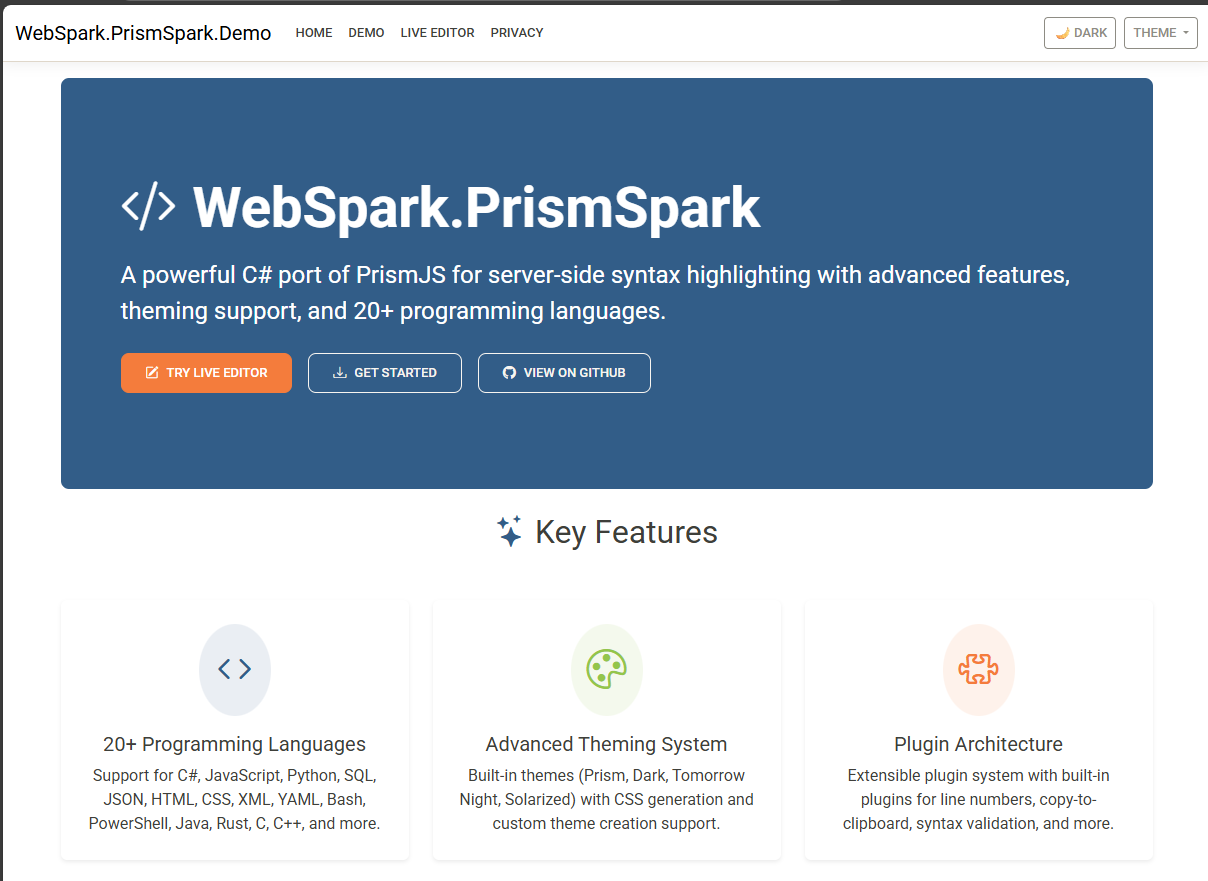
PrismSpark: Advanced C#/.NET Syntax Highlighting Library
PrismSpark is a high-performance .NET 10 library that ports PrismJS for server-side syntax highlighting. Features a plugin system (line numbers, copy-to-clipboard, toolbar), hook-based event system, theme engine with CSS generation, and ASP.NET Core MVC integration supporting 20+ languages.
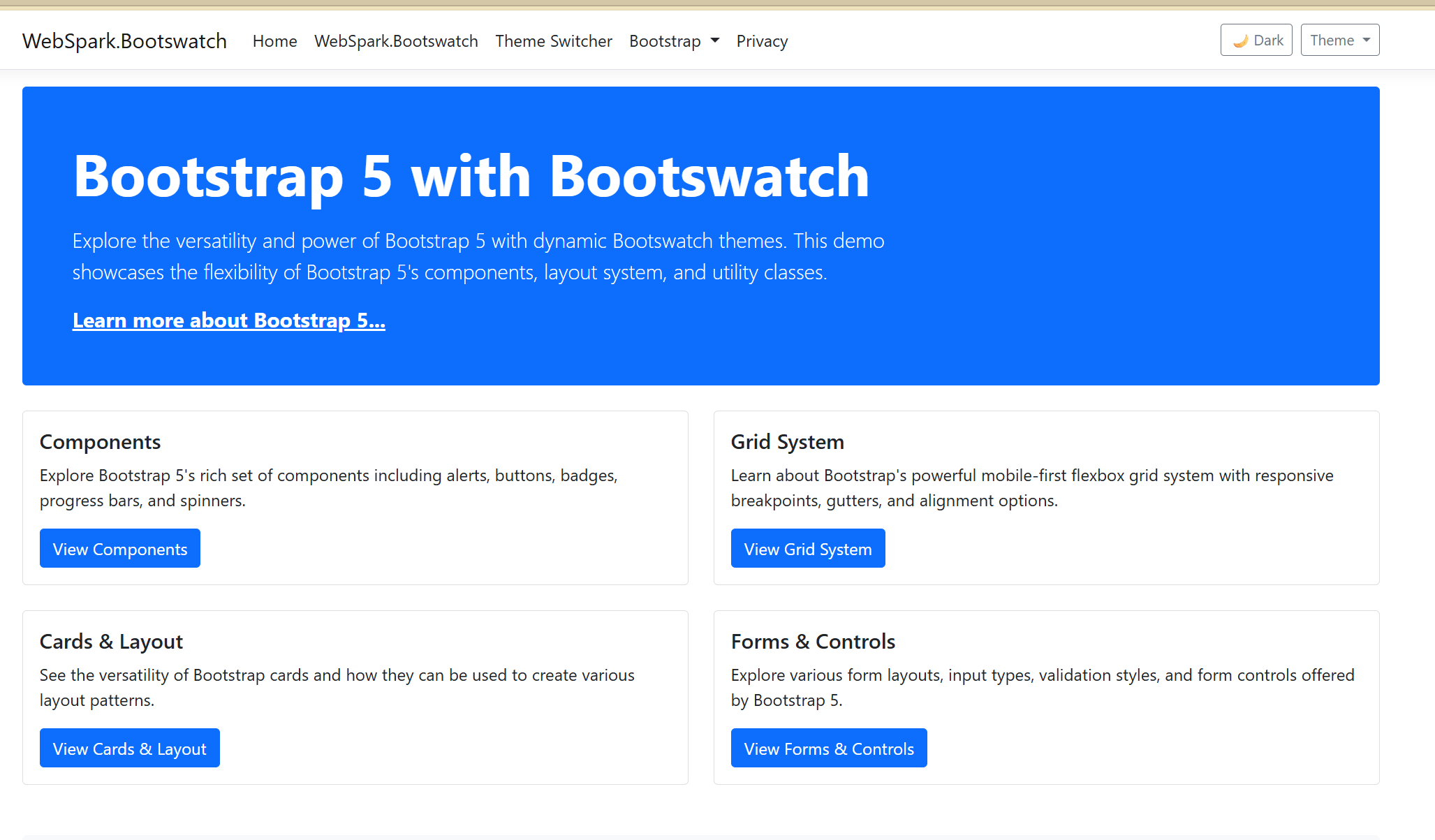
WebSpark Bootswatch Theme Integration Library
WebSpark.Bootswatch is a .NET Razor Class Library (NuGet package) enabling seamless Bootswatch theme integration into ASP.NET Core applications. Version 2.0+ targets .NET 10 exclusively, featuring dynamic theme switching, light/dark mode with auto-detection, tag helper support, and high-performance StyleCache caching.
Thousands of NuGet downloads
Working through something similar?
If this maps to something you're working on, I'm glad to compare notes. Start with the system and the constraint that matters most.