Moving to MarkHazleton.com
Moving a blog from one domain to another is mostly a DNS exercise — until it isn't. Migrating from markhazleton.controlorigins.com to markhazleton.com on Azure Static Web Apps with Cloudflare DNS surfaced the small details that decide whether a cutover is clean or quietly breaks SEO.
Content Strategy Series — 8 articles
- Mastering Blog Management Tools
- Embracing Azure Static Web Apps for Static Site Hosting
- Moving to MarkHazleton.com
- Automate GitHub Profile with Latest Blog Posts
- Syntax Highlighting with Prism.js for XML, PUG, YAML, and C#
- Canonical URL Troubleshooting for Static Web Apps
- Developing MarkHazleton.com: Tools and Approach
- Getting Started with PUG: History and Future
Filed under How software delivery really works
Topic cluster
Case Studies and Project EvidenceProject writeups, Spark ecosystem applications, content workflows, and lessons from shipped systems.
Screaming Frog SEO Spider Tutorial
Moving to MarkHazleton.com
I recently moved my blog from a subdomain to my own domain, and I want to share how it went. It was more straightforward than I expected, but I picked up some lessons along the way.
Why I decided to move
My site lived at markhazleton.controlorigins.com. That worked, but it felt clunky. When I noticed MarkHazleton.com was available, grabbing it was an easy call.
A few reasons made the move make sense:
- A cleaner, more professional URL that is easier to remember
- Better for SEO, since search engines treat subdomains differently
- More control over my online brand
- Everything managed in one place
Having your own name as a domain also just feels right when you are building a personal brand.
SEO considerations
The biggest worry with moving domains is losing search rankings. I had spent time building up the SEO value of the old domain, and I did not want to throw that away. Here is what I learned about keeping it intact.
1. Plan carefully. I scheduled the move for a low-traffic time and made a complete backup of everything. I also used Screaming Frog to audit all my current URLs so I knew exactly what needed to be redirected.
2. Set up 301 redirects. All the old URLs need to redirect automatically to the new ones. I used Cloudflare Page Rules for this, which made it pretty straightforward.
3. Update Google Search Console. Google has a Change of Address tool for exactly this situation. You verify both domains in Search Console first, then tell Google about the move.
4. Update internal links. Go through the site and point internal links at the new domain. Do not forget navigation menus, footer links, and hard-coded links in content.
5. Update external links when possible. Reach out to sites that link to you and ask them to update. Start with the high-authority sites, since those links are the most valuable.
6. Submit a new sitemap. Generate a sitemap for the new domain and submit it to Google Search Console and Bing.
I am a big fan of the Screaming Frog SEO Spider for auditing websites. It gives a complete picture of the site structure and makes planning the migration much easier.
How I did the migration
My setup uses Azure Static Web Apps for hosting and Cloudflare for DNS, which made some parts easier. Here is how I moved the site from the subdomain to the new domain.
Step 1: Planning and preparation
Before touching anything, I used Screaming Frog to crawl the entire site and build an inventory of every URL. That showed me exactly what needed to be redirected and flagged potential problems early.
I also set up markhazleton.com on Azure Static Web Apps with identical content, so I could confirm everything worked before switching over. Both domains had to be verified in Google Search Console to use the Change of Address tool later.
Step 2: Setting up DNS with Cloudflare
I added markhazleton.com to Cloudflare and changed the domain's name servers to point there. Then I configured the DNS records to direct traffic to my Azure Static Web Apps endpoint.
The key was making sure both the A records and the CNAME records pointed to the right Azure targets. I kept the old domain's DNS settings active too, since the redirects would not work without them.
Step 3: Configuring redirects with Page Rules
This was the most critical part. I used Cloudflare Page Rules to set up 301 redirects from the old domain to the new one. The rule pattern was simple: markhazleton.controlorigins.com/* redirects to markhazleton.com/$1.
Page Rules let you create redirects without touching server configuration. You set a pattern that matches the old URLs and redirect them to the new domain. The $1 variable captures everything after the domain name and appends it to the new URL, so /articles/some-post lands on markhazleton.com/articles/some-post.
Step 4: Telling Google about the move
Once the redirects worked, I used Google's Change of Address tool in Search Console. It officially tells Google the site has moved and helps transfer the SEO value from the old domain to the new one.
The process took a few weeks, and Google showed a "Move In Process" message the whole time. Temporary ranking fluctuations during this period are normal, so try not to panic.
Step 5: Cleanup and monitoring
After the technical migration there was still plenty to do:
- Updated all internal links to the new domain
- Generated and submitted a new sitemap to search engines
- Reached out to high-authority sites to update their backlinks
- Updated social media profiles and business listings
- Updated email signatures and printed materials
What I learned
The migration went smoother than I expected, but there were things I wish I had known beforehand.
Technical insights
Cloudflare makes DNS management easy. Page Rules are particularly helpful for redirects because they need no server-level configuration. The web interface is intuitive and changes propagate quickly.
Keep both domains' DNS active. If you disable the old domain's DNS before the redirects are working, you lose traffic. I kept the old domain active for several months to be safe.
Test everything before going live. I set up the new domain completely before switching any redirects, which let me verify that all the content worked on the new domain.
SEO and timing insights
Patience is key. Google took about 6 to 8 weeks to fully process the change and mark the old domain as "Moved" in Search Console. Rankings and traffic returned to normal well before that.
Monitor closely. I checked Search Console and Analytics daily for the first month to catch problems early. There were temporary fluctuations, but nothing that needed intervention.
Timing matters. I scheduled the migration for a low-traffic period to minimize disruption, and advance warning through social media and email helped keep my audience engaged.
Communication insights
Tell people about the change. I announced it through a blog post, a newsletter, and social media. Most people were understanding, and some even congratulated me on getting my name as a domain.
Update external references gradually. Not everyone will update their links right away, but the 301 redirects cover that. I reached out to the high-authority sites first because those links matter most.
Common issues and troubleshooting
My migration went smoothly overall, but I hit a few bumps. These are the most common issues and how I would handle them.
Redirect issues
Redirects not working. First check that the old domain's DNS is still active. Then verify the Page Rule pattern in Cloudflare, because it is easy to make syntax errors.
Redirect loops. These happen when you accidentally create circular redirects. Make sure the new domain is not redirecting back to the old one anywhere.
Search Console issues
"Move In Process" taking too long. The Change of Address process can take 6 to 8 weeks. As long as your redirects work and you are not seeing major traffic drops, be patient.
New domain not being indexed. Submit your sitemap to Search Console and request indexing for your most important pages. Make sure robots.txt is not blocking search engines.
Performance issues
Slower page loads. Redirects can slow things down slightly. Monitor your Core Web Vitals and consider enabling Cloudflare's performance optimizations.
How long it took
Here is the realistic timeline.
Week 1: Planning and setup
- Audited the current site with Screaming Frog
- Set up the new domain on Azure Static Web Apps
- Verified both domains in Google Search Console
- Backed up all content and settings
Week 2: Technical migration
- Configured Cloudflare DNS for the new domain
- Set up 301 redirects with Page Rules
- Tested the redirects thoroughly
- Started Google's Change of Address process
Weeks 3-4: Monitoring and cleanup
- Updated internal links site-wide
- Submitted the new sitemap to search engines
- Announced the change to my audience
- Reached out to high-priority backlink sources
Months 2-3: Long-term monitoring
- Monitored rankings and traffic daily
- Addressed crawl errors in Search Console
- Continued backlink outreach
- Waited for Google to finish processing the move
The technical work took about two weeks, but the full process stretched over two to three months. Most of that was waiting for Google to process the change while I confirmed everything kept working. I saw temporary fluctuations in search rankings during the first few weeks, which is normal. They stabilized once the search engines finished with the move. The longest wait was for Google to mark the old domain as "Moved" in Search Console, and rankings and traffic had recovered well before that.
Final thoughts and resources
Moving to my own domain turned out to be one of the better decisions I have made for my online presence. The process was more straightforward than I expected, especially with Cloudflare handling the technical details. With proper planning and the right tools, you can migrate domains without losing your SEO value. In my case, the new domain ended up performing better than the old subdomain once everything settled.
What made it work:
- Thorough planning: Auditing and preparing made the actual migration much smoother.
- Proper redirects: 301 redirects are critical for preserving SEO value.
- Patient monitoring: Temporary fluctuations are normal.
- Clear communication: Keeping your audience informed maintains trust and traffic.
Tools and resources I used:
- Screaming Frog SEO Spider for auditing your site before migration
- Cloudflare Page Rules Guide for setting up redirects properly
- Google Change of Address Tool for the official domain migration documentation
- Google Search Console for monitoring progress and catching issues early
If you are thinking about a similar move, I would say go for it. Better branding, consolidated SEO, and professional credibility are worth the effort. Plan it properly, set up the redirects, and be patient while search engines process the change.
Explore More
- Embracing Azure Static Web Apps for Static Site Hosting -- Discover the Power of Azure for Modern Web Hosting
- Canonical URL Troubleshooting for Static Web Apps -- Optimize Canonical URLs for Better SEO in Static Apps
- Developing MarkHazleton.com: Tools and Approach -- Building a Modern Website with Cutting-Edge Technologies
- Getting Started with PUG: History and Future -- Exploring PUG's Journey and Its Future Prospects
- Mastering Blog Management Tools -- Creating a Custom CMS for Your Blog
Related project evidence
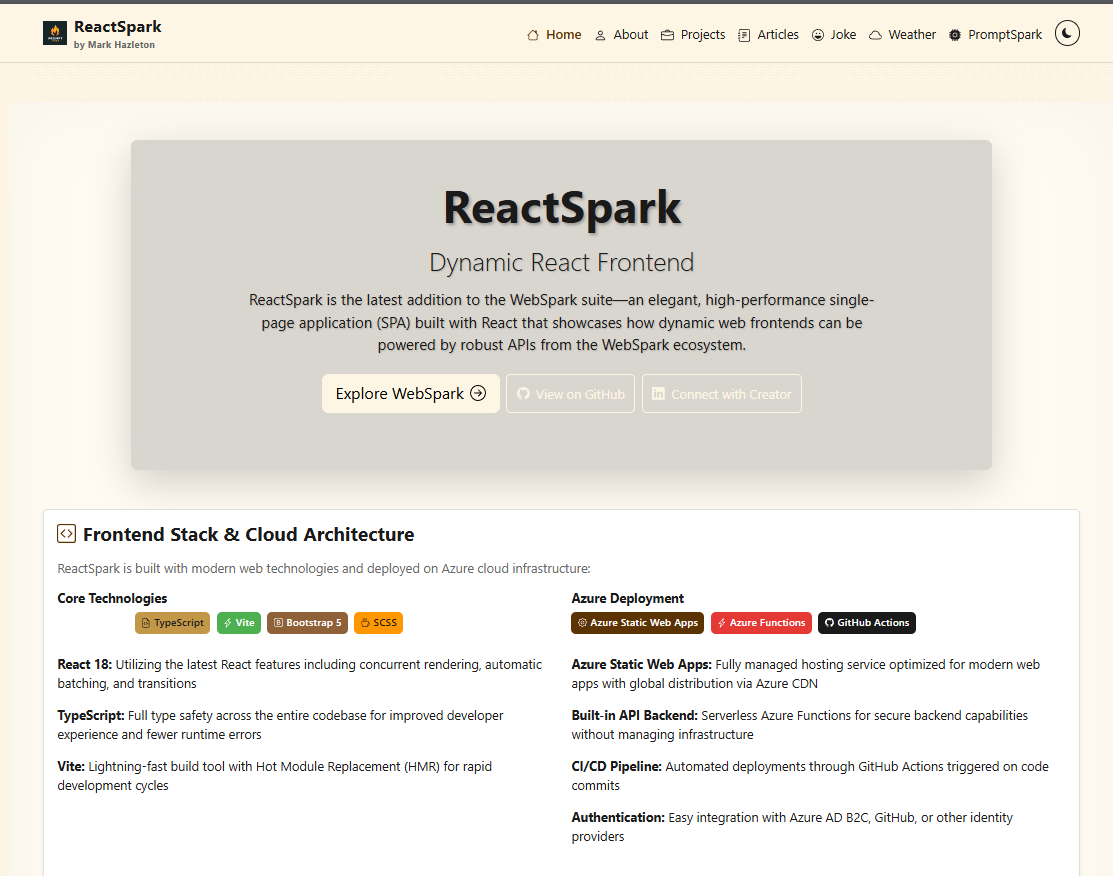
ReactSpark
A production-ready developer portfolio built with React 19.1, TypeScript 5.9, and Vite 7.0. Features SignalR real-time chat with AI personalities, live weather widget with Leaflet maps, RSS feed integration, dark/light theming, admin panel, and dual deployment to Azure Static Web Apps and GitHub Pages.
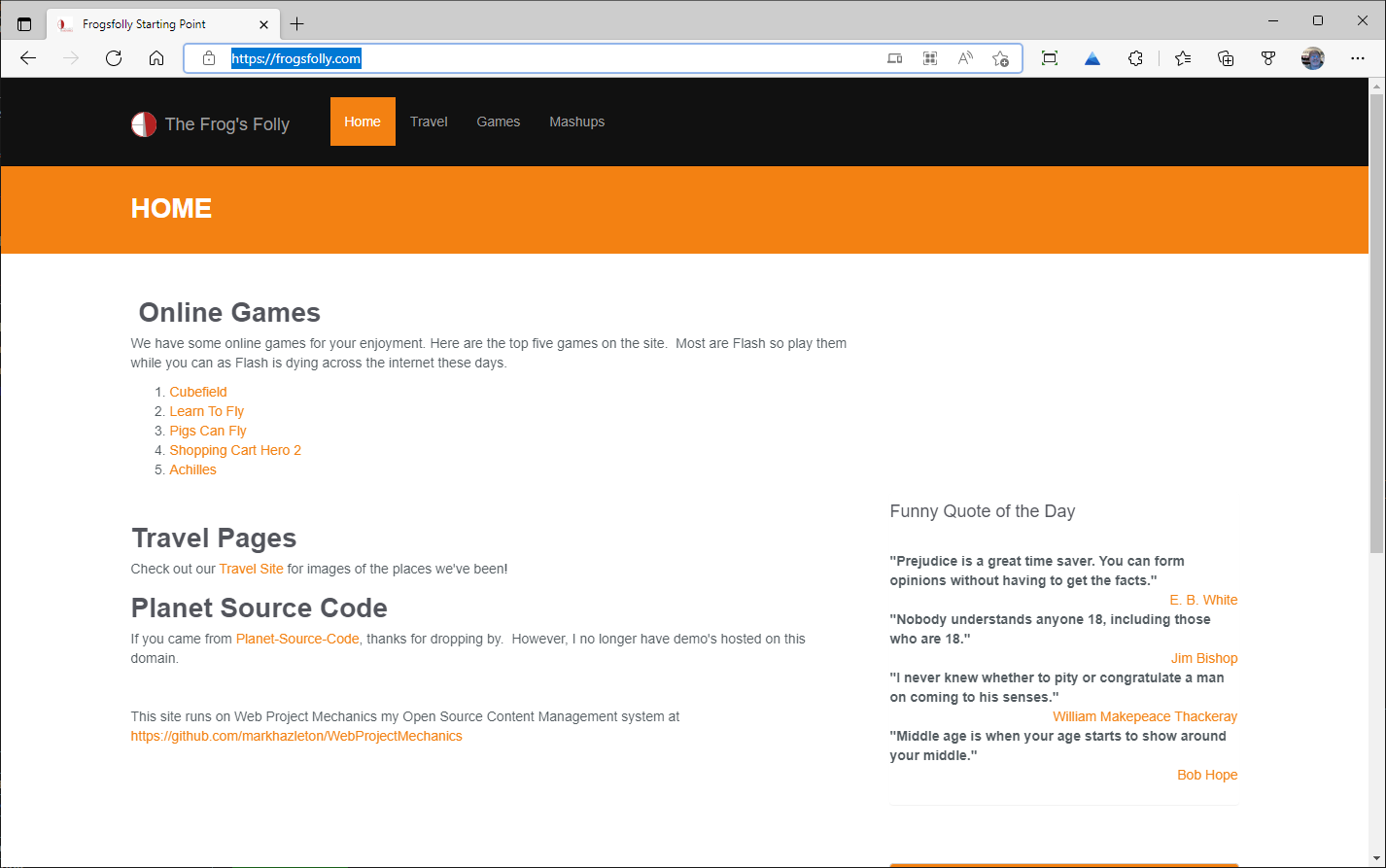
Frogsfolly.com Main
Frogsfolly.com is the original website I created in 1999 when learning web technologies.

TexEcon
Texas economic analysis and commentary site delivering expert insights on the Texas economy, built as a static React application with build-time content integration from the WebSpark API.
Working through something similar?
If this maps to something you're working on, I'm glad to compare notes. Start with the system and the constraint that matters most.